Sorry for not posting in a couple of days. Things have been busy. Anyways last Wednesday I was nominated for an award in the Shenandoah Valley for innovation in K-12. The link to the founders as well as narratives of my nomination can be found: http://www.svtc-va.org/v.php?pg=3
I was selected as the winner in this category and it has been an exciting time since. My school district has won this category 3 times in 3 years, in which 1 teacher from each middle school has won.
Reflecting back on the event, the award was to recognize the hard work put into an app designed specifically for my students, but I also see it as a sign to continue to pursue my dreams in technology and education. I truly do feel that today's generation of students are so familiar with technology that as an educator, it is our job to teach to their medium. I intend to consistently update my app, WileD Math, as well as consider producing additional apps to be used in the school systems.
A special thanks to Verizon for being the sponsor of my award and a thanks to the technology council for their time and dedication to making this event.
Showing posts with label math. Show all posts
Showing posts with label math. Show all posts
Monday, May 6, 2013

Sunday, April 28, 2013
App Review - MyScript Calculator
 As a math teacher I find this very engaging and fun to use and as a programming I am amazed at the apps ability to convert handwriting to actual numeric numbers. I can't imagine the difficulties of handwriting recognition, but recognize it's impressive feat. Now, I don't in any way indulge in the fact that this should be used all the time, it is important students can handle the math on their own as well, but this is just a fun app you can play around with from time to time.
Enjoy and get handwriting.
Stay Effective!
Don't miss out, add us or subscribe today.
Wednesday, April 17, 2013
Appropriate times for calculators
As a math teacher I am constantly fighting with myself when is it appropriate to have the students use a calculator? On one hand, the state test for my students allows the students to use a calculator on the entire test, this is the first math test where that is the case. Is there an expectation that at this point the students should only do things through their calculator or is the state assuming that they have the basic skills to get by without a calculator when needed? I just feel with so much uncertainty, that there may not be a correct answer.
Personally my stance is that students need to learn how to do something the most in depth way, before they take any type of shortcut. For example, in graphing, my students learn to plot a graph through a table. Only after plotting from a table and practicing and learning about the idea of slope, do I present a new way to graph by putting a point on the y-intercept and then using the slope to count to the next spot on the graph. Students are then encouraged to do the problems the way they would prefer, most opt for the shortcut, but a few will still choose to use the table.
I will then transfer this idea to calculators. Students should be able to see by hand how to square something before they just do it on the calculator. Not for any other reason than learning and understanding the concept, rather than just memorizing what to push. I want my students to leave my room, not knowing how to push buttons, but how to problem solve. I want them to have a process learned in algebra, so that when an algebraic problem comes their way and it is different from the ones we did in class, that they will be able to apply the properties logically and achieve a correct answer.
How can we go deeper in mathematics, if we only provide a superficial learning to our students?
Effective technology is not just about sharing ideas on how to implement technology, but it is also about the technology used in the classroom.
When you allow the use of a calculator, ask yourself why you are doing it. Is it so the student can show they know what buttons to push or do you want to see them apply what they have learned?
As always,
Stay Effective!
Don't miss a post, follow us or sign-up for an e-mail subscription.
Personally my stance is that students need to learn how to do something the most in depth way, before they take any type of shortcut. For example, in graphing, my students learn to plot a graph through a table. Only after plotting from a table and practicing and learning about the idea of slope, do I present a new way to graph by putting a point on the y-intercept and then using the slope to count to the next spot on the graph. Students are then encouraged to do the problems the way they would prefer, most opt for the shortcut, but a few will still choose to use the table.
I will then transfer this idea to calculators. Students should be able to see by hand how to square something before they just do it on the calculator. Not for any other reason than learning and understanding the concept, rather than just memorizing what to push. I want my students to leave my room, not knowing how to push buttons, but how to problem solve. I want them to have a process learned in algebra, so that when an algebraic problem comes their way and it is different from the ones we did in class, that they will be able to apply the properties logically and achieve a correct answer.
How can we go deeper in mathematics, if we only provide a superficial learning to our students?
Effective technology is not just about sharing ideas on how to implement technology, but it is also about the technology used in the classroom.
When you allow the use of a calculator, ask yourself why you are doing it. Is it so the student can show they know what buttons to push or do you want to see them apply what they have learned?
As always,
Stay Effective!
Don't miss a post, follow us or sign-up for an e-mail subscription.
Monday, April 15, 2013
iPad Apps - High School
Locating math apps for the high school can be rather difficult with such a variety of math classes and the fact that most of the high school math apps feature very little on the engaging game side, but rather focus strictly on practicing math problems on a topic. I have come across a couple math apps worthy of discussing and sharing.
 Math Formulas - Reference Guide: This app provides a list of nearly 100 different formulas in 1 easy place that can be sorted and used in class on an as needed basis. I am mentioning this app as I feel that students being able to determine what formula they need to use is a key skill when trying to develop those problem solving and logical reasoning skills.
 KineMath - This is an incredibly powerful app for graphing equations. Graphing can be quite a difficult journey for students when it comes to some of those more complex graphs or when trying to figure out what does what to an equation, such as when I have a quadratic equation, what does a number inside the parenthesis do versus outside of it? I see this app as such an amazing way to investigate properties of lines. Plus it is extremely touch interactive.

 The last app is dedicated to those sophemores and juniors looking to take the SAT's.

The Easel series features SAT prep, algebra, and other topics that can help prepare students for their math tests coming up. These apps cost a little money, but if you were planning on buying an SAT review book, this could be an alternative solution that provides a lot of problems to work on.
 Graphing Calculator - I just wanted to add this app so that you can consider if in a school with iPads already to save some money and simply get a graphing calculator app for $0.99 and perhaps use that money to buy a class set of iPads.

Stay Effective!
Like these posts? Feel free to follow or subscribe to avoid missing one!
Sunday, April 14, 2013
iPad Math Apps - Middle School
Searching for quality elementary school math apps are rather easy. It always appeared to me that finding quality apps for the middle school is better described like a black-hole, you know they could be out there, but no matter how hard you look, you can never find them. Today we will be taking a look at several math apps that can be used for multiple lessons or topics. I will go over what topics it can cover, nice perks to the app, as well as anything special such as why should you choose this app over that app.

 WileD Math - I designed this app intentionally for teachers to use in the classroom to motivate students to learn to answer questions correctly. The app covers 36 topics including algebra, geometry, graphing, inequalities, algebraic properties, percent problems, fractions, and many other categories. As you answer questions you can earn credits to play little mini-games as a reward. Students love to compete against each other in the mini-games to see who can score the most points. A lot of the topics feature technology enhanced topics such as plotting the inequality, shading, and determining an open or closed point. Another technology enhanced topic involves picking two angles that meet a certain geometric definition. My students love using this app and enjoy the days we get on the iPad. Students are asked to complete so many questions correctly for credit for the day in class or take a "mini"-quiz on it then earn the credits. The app also features a variety of options, including a tag mode that allows the user to e-mail their tag score to a teacher or someone else. This app is currently free for download on the app store.
 Numbler - This is a really neat app that works on the orders of
operations scrabble style. Working on number sense, this is an app to
try. Note there is still some orders of operation improvements needed for this app.
Numbler - This is a really neat app that works on the orders of
operations scrabble style. Working on number sense, this is an app to
try. Note there is still some orders of operation improvements needed for this app.
Math 7 and Math 8 -These games are made for that particular grade level in which your goal is to move a monkey as high as possible up the screen. As you move up the screen you earn more points. After so much time you must answer some math questions on some more basic middle school math, after answering correctly you are given more time to move your monkey higher up the screen. Simple, but effective!
My last App I am going to share tonight seems more like a fun app, but I am going to provide some uses with respect to geometry and mathematical observations.
LestTans Cls - This is a wonderful tangram app. Now tangrams in itself can help students recognize how perimeter can change even if the area doesn't. I challenge all of you teachers out there to do an activity where students investigate this concept by using the same shapes but build different objects. Afterwards students add up the perimeter (perhaps give measurements of all sides of each tile on the board). Afterwards you can have a discussion about their observations of area and perimeter!
Stay Effective!
Like these posts? Feel free to follow or subscribe to avoid missing one!

 WileD Math - I designed this app intentionally for teachers to use in the classroom to motivate students to learn to answer questions correctly. The app covers 36 topics including algebra, geometry, graphing, inequalities, algebraic properties, percent problems, fractions, and many other categories. As you answer questions you can earn credits to play little mini-games as a reward. Students love to compete against each other in the mini-games to see who can score the most points. A lot of the topics feature technology enhanced topics such as plotting the inequality, shading, and determining an open or closed point. Another technology enhanced topic involves picking two angles that meet a certain geometric definition. My students love using this app and enjoy the days we get on the iPad. Students are asked to complete so many questions correctly for credit for the day in class or take a "mini"-quiz on it then earn the credits. The app also features a variety of options, including a tag mode that allows the user to e-mail their tag score to a teacher or someone else. This app is currently free for download on the app store.
 Numbler - This is a really neat app that works on the orders of
operations scrabble style. Working on number sense, this is an app to
try. Note there is still some orders of operation improvements needed for this app.
Numbler - This is a really neat app that works on the orders of
operations scrabble style. Working on number sense, this is an app to
try. Note there is still some orders of operation improvements needed for this app.Math 7 and Math 8 -These games are made for that particular grade level in which your goal is to move a monkey as high as possible up the screen. As you move up the screen you earn more points. After so much time you must answer some math questions on some more basic middle school math, after answering correctly you are given more time to move your monkey higher up the screen. Simple, but effective!
My last App I am going to share tonight seems more like a fun app, but I am going to provide some uses with respect to geometry and mathematical observations.
LestTans Cls - This is a wonderful tangram app. Now tangrams in itself can help students recognize how perimeter can change even if the area doesn't. I challenge all of you teachers out there to do an activity where students investigate this concept by using the same shapes but build different objects. Afterwards students add up the perimeter (perhaps give measurements of all sides of each tile on the board). Afterwards you can have a discussion about their observations of area and perimeter!
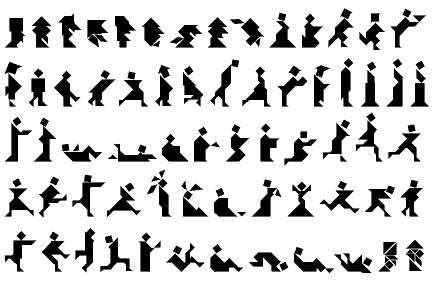 | ||
| With Tangrams, the objects you can make are endless! |
Stay Effective!
Like these posts? Feel free to follow or subscribe to avoid missing one!
Saturday, April 13, 2013
iPad Math Apps - Elementary
Looking for some top notch math apps for elementary schools? Today we will be taking a look at some apps that are free and some that are worth the money.
1) Math Grade 1-4: kids practice fun - trainer for elementary school. This app provides a lot of wonderful visuals when practicing your operations of multiple digits. There are a variety of math problems included in this app including money arithmetic, reading and interpreting time, as well as fun mini-games that you can play. The mini-games are earned after working out so many problems and are considered a fun reward. This app is free to download, but the in-app purchases allow you to buy what grade levels you would like to use, so if you are using it for only one grade level, you can pick and choose what math to buy.
2) Math Adventure with Fast Facts: This app is currently free (for a limited time) and provides some entertaining ways to practice your math operations. There are multiple levels to choose from and a parent mode that is to provide some wonderful bonding with your child as you can compete together. This app also has in-app purchases which opens up various levels of the math facts for $1.99 each.
 3) The Motion Math Series: I absolutely love the motion math series. This series provides a free version and then a version you can pay for that unlocks everything.
Motion math has the following games available.
a) Hungry Fish - Feed the fish by putting number bubbles together to get to the number the fish wants to eat. As you feed the fish, it will get bigger until it is so big that the game is over and you move to the next level. If you don't feed it fast enough, the fish will shrink and shrivel out of existence.
 b) Zoom - This is an extremely interactive way to use the number line. I love it for my students as well, because it really requires students to understand how numbers are lined up in order. As you zoom in and out, various animals are between the numbers, the more you zoom in the more the animals are naturally smaller to get you the idea you zoomed in. As you progress in levels you start with integers and can eventually move into more challenges such as decimals and negative numbers. Filling in the number line has never been so much fun!
c) Wings - Wings is an expansion on one main operation, multiplication. I abosultely enjoyed using this as it provides not just one way, but multiple visuals to multiply numbers together. I feel this app would have a lot of potential in showing students why we can multiple, how grouping works. As you answer questions you can earn feathers to customize your bird's wings. The different visuals of multiplication that this app provides are: rows of dots, clusters of dots, groups of dots, a grid, a labelled grid, and through the use of symbols.
As a middle school teacher, I really appreciate apps that help students understand what a fraction represents. To this day, I feel most students are afraid of fractions and try to put everything to a decimal. Well, when teaching various degrees of math such as slope, a decimal would be a lot harder to work with than a fraction, so I always look for apps to help students relate better with fractions.
 4) Pizza Fractions: Beginning with Simple Fractions - is a wonderful way to start. The idea of the app is that you have only so much of a pizza left and you have to count how many slices are there out of how many slices were originally there. After completing a round you are given an overall score which is based off of how long it took to answer the questions as well as how accurate you were.
5) Fraction Math - is an app that allows students to practice each step of the problem until you get the correct answer. This is a wonderful idea, because it holds students accountable for showing all of the steps along the way for the problem.
 6) Motion Math HD - Fractions!: This is another one of motion maths great apps that involve fractions. This app for $2.99 has students placing fractions on various parts of a number line...what an amazing application to fractions and have number sense. Students see shapes falling to the ground and need to put the shape in close proximity to where the fraction would belong. There are a variety of levels and difficulties to challenge even the top students. Some levels require you to determine if a fraction is less than, equal, or more than another fraction!
As always, we will continue to provide you more apps for math in the coming days, our next post will feature math apps for the middle school, then for the high school. Want some apps for your subject? Post a comment and perhaps your request will be the next series of posts!
Stay Effective!
1) Math Grade 1-4: kids practice fun - trainer for elementary school. This app provides a lot of wonderful visuals when practicing your operations of multiple digits. There are a variety of math problems included in this app including money arithmetic, reading and interpreting time, as well as fun mini-games that you can play. The mini-games are earned after working out so many problems and are considered a fun reward. This app is free to download, but the in-app purchases allow you to buy what grade levels you would like to use, so if you are using it for only one grade level, you can pick and choose what math to buy.
2) Math Adventure with Fast Facts: This app is currently free (for a limited time) and provides some entertaining ways to practice your math operations. There are multiple levels to choose from and a parent mode that is to provide some wonderful bonding with your child as you can compete together. This app also has in-app purchases which opens up various levels of the math facts for $1.99 each.
 3) The Motion Math Series: I absolutely love the motion math series. This series provides a free version and then a version you can pay for that unlocks everything.
 Motion math has the following games available.
a) Hungry Fish - Feed the fish by putting number bubbles together to get to the number the fish wants to eat. As you feed the fish, it will get bigger until it is so big that the game is over and you move to the next level. If you don't feed it fast enough, the fish will shrink and shrivel out of existence.
 b) Zoom - This is an extremely interactive way to use the number line. I love it for my students as well, because it really requires students to understand how numbers are lined up in order. As you zoom in and out, various animals are between the numbers, the more you zoom in the more the animals are naturally smaller to get you the idea you zoomed in. As you progress in levels you start with integers and can eventually move into more challenges such as decimals and negative numbers. Filling in the number line has never been so much fun!
c) Wings - Wings is an expansion on one main operation, multiplication. I abosultely enjoyed using this as it provides not just one way, but multiple visuals to multiply numbers together. I feel this app would have a lot of potential in showing students why we can multiple, how grouping works. As you answer questions you can earn feathers to customize your bird's wings. The different visuals of multiplication that this app provides are: rows of dots, clusters of dots, groups of dots, a grid, a labelled grid, and through the use of symbols.
As a middle school teacher, I really appreciate apps that help students understand what a fraction represents. To this day, I feel most students are afraid of fractions and try to put everything to a decimal. Well, when teaching various degrees of math such as slope, a decimal would be a lot harder to work with than a fraction, so I always look for apps to help students relate better with fractions.
 4) Pizza Fractions: Beginning with Simple Fractions - is a wonderful way to start. The idea of the app is that you have only so much of a pizza left and you have to count how many slices are there out of how many slices were originally there. After completing a round you are given an overall score which is based off of how long it took to answer the questions as well as how accurate you were.
5) Fraction Math - is an app that allows students to practice each step of the problem until you get the correct answer. This is a wonderful idea, because it holds students accountable for showing all of the steps along the way for the problem.

As always, we will continue to provide you more apps for math in the coming days, our next post will feature math apps for the middle school, then for the high school. Want some apps for your subject? Post a comment and perhaps your request will be the next series of posts!
Stay Effective!
Friday, April 12, 2013
iPad Math Apps - Math Operations
I sometimes get overwhelmed when it comes to finding math apps, there are a lot of apps out there, but I can never find what I am looking for. What makes a math app usable? What are cheap options that students will enjoy?
Typically when it comes to looking for a math app, you either want an app that covers one topic extremely well or an app that covers multiple topics that students can practice and work on.
We will be spending the next few posts discussing various types of math apps that are available for all grade levels. If you want your subject to be next, post a comment below and I will be sure to include your subject next.
I have more math apps downloaded than anything else. Every time I see a math app that has gone free, I must download it! Here is a list of some of my most used apps, along with the specifics of each app.
Basic Operations
Hungry Fish - Basic operations math app that can challenge even the best of the adults. Combine number bubbles together and feed the fish the correct numbers, but be careful if you put bubbles together and the number is to big then you lose those bubbles. As you feed the fish it slowly gets bigger, but over time begins to shrink out of existence.
Math v Zombies - what is better than shooting zombies? Well shooting zombies and instead of killing them, they turn back into humans! In order to transform the zombies back into humans you must answer math questions before the zombies catch up to you.
 WileD MathFacts - A simple idea of popping bubbles as they drop. The levels get progressively harder as students show mastery of the operations they are currently working on. Add negatives, remove the game timer, and compete for the high score. There is a lot you can do with this app.
Math Zoom - Great for number line practice. Zoom in and out of a number line and place the numbers in the correct spots, additional challenges are available as you unlock levels.
Card Clutter - An app designed to help students determine ordering in numbers. You are given 10 cards and tap them in the order from least to greatest. Simple and effective!
Stay tuned, follow this blog or sign-up to receive these posts via e-mail! The next series of posts will cover apps appropriate for elementary, middle, and high school as well as the topics they cover in mathematics!
Stay Effective!
Typically when it comes to looking for a math app, you either want an app that covers one topic extremely well or an app that covers multiple topics that students can practice and work on.
We will be spending the next few posts discussing various types of math apps that are available for all grade levels. If you want your subject to be next, post a comment below and I will be sure to include your subject next.
I have more math apps downloaded than anything else. Every time I see a math app that has gone free, I must download it! Here is a list of some of my most used apps, along with the specifics of each app.
Basic Operations
Hungry Fish - Basic operations math app that can challenge even the best of the adults. Combine number bubbles together and feed the fish the correct numbers, but be careful if you put bubbles together and the number is to big then you lose those bubbles. As you feed the fish it slowly gets bigger, but over time begins to shrink out of existence.
Math v Zombies - what is better than shooting zombies? Well shooting zombies and instead of killing them, they turn back into humans! In order to transform the zombies back into humans you must answer math questions before the zombies catch up to you.

Math Zoom - Great for number line practice. Zoom in and out of a number line and place the numbers in the correct spots, additional challenges are available as you unlock levels.
Card Clutter - An app designed to help students determine ordering in numbers. You are given 10 cards and tap them in the order from least to greatest. Simple and effective!
Stay tuned, follow this blog or sign-up to receive these posts via e-mail! The next series of posts will cover apps appropriate for elementary, middle, and high school as well as the topics they cover in mathematics!
Stay Effective!
Wednesday, April 10, 2013
Using Clickers to Assess Performance
I'm not sure about everyone's school, but it seems to me that a lot of schools are pushing for data. Data to show you are an effective teacher, that your students are growing a minimum years growth. How in the world are you suppose to do that?
Well...clickers can be part of the solution. I use my clickers for a lot of different activities, but one thing use them for is to show student growth. Before every chapter I give a 9-12 question pre-test with multiple choice answers. After the chapter, I give the students the same test (answers are moved around), but as a post-test. I can then show growth through percent of change or the student growth index. To see how to calculate these things, please view the bottom of this post.
By asking the same questions, I can record loads of data, such as overall scores, where do my special ed, English language learners compare, as well as any other group breakdown that I want to take the time to do. Not only do I see the class growth as a whole as we go along the chapter, but I also see individual data after the clicker test. My students take the post-test with clickers a day before the chapter test. Afterwards, my students have an assignment to work on, such as a study guide, in which during this time, I call students up one at a time, go through their results and discuss what they should do this evening to prepare for the test. This provides an amazing differentiation opportunity, as well as gives me this really neat one on one time with my students.
By all means, I am not a data hog, I believe there is a thing as to much data, but gathering data from time to time that can truly improve instruction is key and clickers provide a fun way for the students and an easy way for the teacher to get that key data required.
The bottom of this post are the equations to calculate various types of growth.
Percent of Change - Calculates the percent of growth from pre to post
(Post Score - Pre Score)/Pre Score...then multiply by 100 to get the percent.
Student Growth Index - Calculates the students potential growth, instead of actual growth
preGrowth = Total Points on Test - Pre Score
postGrowth = Total Points on Test - Post Score
(Post Growth - PreGrowth)/Pre Growth...then multiply by 100 to get the percent.
Stay Effective!
 |
| The receiver in my room |
 |
| Types of clickers used in the classroom |
By all means, I am not a data hog, I believe there is a thing as to much data, but gathering data from time to time that can truly improve instruction is key and clickers provide a fun way for the students and an easy way for the teacher to get that key data required.
The bottom of this post are the equations to calculate various types of growth.
Percent of Change - Calculates the percent of growth from pre to post
(Post Score - Pre Score)/Pre Score...then multiply by 100 to get the percent.
Student Growth Index - Calculates the students potential growth, instead of actual growth
preGrowth = Total Points on Test - Pre Score
postGrowth = Total Points on Test - Post Score
(Post Growth - PreGrowth)/Pre Growth...then multiply by 100 to get the percent.
Stay Effective!
Clickers in the Classroom
Today we are going to be taking a closer look at clickers in the classroom. There are a lot of types of clickers out there and we will go into the details of types of clickers at a later time, but right now I want to focus on the effectiveness of these great devices.
First off, clickers are a simple idea that provides many wonderful opportunities in the classroom. Clickers are designed to give the teacher (and students) instant feedback on his or her understanding of the topic(s). It is an amazing tool because students love being able to point and click to the receiver in the room and love to see if they are doing the problems correctly or know the information.
Clickers can be used for a lot of different ideas. Here are a list of the few main concepts for clickers.
1) A pre and post test that can be done in 10-15 minutes of class to see what students may already know before starting a unit and then be able to see the students' growth from the post clicker test. A bonus is that students don't feel that it is a test and will relax and really show you what they know!
2) Teaching a new topic? Why not incorporate your notes onto a powerpoint or other slideshow that works with the clickers, teach a concept and then have the students use the clickers after a new topic was taught to see if they are understanding. Perhaps provide an award idea that if you maintain an 80% over so many checks that they can earn a ticket towards the iPad time (See the 1 iPad Classroom Series).
3) Use for a review game...how great could it be for ask the audience?
I started using clickers as a way to engage my students longer on math problems. I teach for 90 minutes, middle schoolers and 90 minutes is a long time! When we bring out the clickers, it is like an amazing reset on class, where the students are refreshed and ready to do more problems even though 2 minutes ago they were burnt out.
I run a Funday Friday idea, where we review a previous topic and students receiving above an 80% are considered proficient on that topic and earn some time in our technology room, which features iPads and computers. Students not at that proficient mark work on a mini-lesson with myself that reflects the topic used with the clickers. It is not seen as a punishment, just as a reward which is really neat to experience, plus some topics you can cut your class in half!
Our next blog will feature how to effectively use the data from clickers to assess your teaching abilities and student growth.
First off, clickers are a simple idea that provides many wonderful opportunities in the classroom. Clickers are designed to give the teacher (and students) instant feedback on his or her understanding of the topic(s). It is an amazing tool because students love being able to point and click to the receiver in the room and love to see if they are doing the problems correctly or know the information.
Clickers can be used for a lot of different ideas. Here are a list of the few main concepts for clickers.
1) A pre and post test that can be done in 10-15 minutes of class to see what students may already know before starting a unit and then be able to see the students' growth from the post clicker test. A bonus is that students don't feel that it is a test and will relax and really show you what they know!
2) Teaching a new topic? Why not incorporate your notes onto a powerpoint or other slideshow that works with the clickers, teach a concept and then have the students use the clickers after a new topic was taught to see if they are understanding. Perhaps provide an award idea that if you maintain an 80% over so many checks that they can earn a ticket towards the iPad time (See the 1 iPad Classroom Series).
3) Use for a review game...how great could it be for ask the audience?
I started using clickers as a way to engage my students longer on math problems. I teach for 90 minutes, middle schoolers and 90 minutes is a long time! When we bring out the clickers, it is like an amazing reset on class, where the students are refreshed and ready to do more problems even though 2 minutes ago they were burnt out.
I run a Funday Friday idea, where we review a previous topic and students receiving above an 80% are considered proficient on that topic and earn some time in our technology room, which features iPads and computers. Students not at that proficient mark work on a mini-lesson with myself that reflects the topic used with the clickers. It is not seen as a punishment, just as a reward which is really neat to experience, plus some topics you can cut your class in half!
Our next blog will feature how to effectively use the data from clickers to assess your teaching abilities and student growth.
Tuesday, April 9, 2013
The 1 iPad Classroom - Holding Students Accountable
My iPad is nearly used for everything now day. I order from Amazon, I check my e-mails, I connect to facebook. This is my convenience technology and I would hate having to enter in my login material every single time, because most importantly my iPad is an effective tool I use in the classroom.
Well there is an amazing solution to hold students accountable and keep them on the app you want them to be on, while leaving your personal apps safe. Apple has always made their products with features intended to be used in the classroom. One of the latest IOS updates in IOS 6 features a brand new teacher tool called "Guided Access".
We will first discuss what Guided Access is and then give you directions to set this tool up on your iPad. In short, guided access prevents a person from leaving whatever app is currently running. This means hitting home does nothing and multi-finger gestures are disabled. When you enable guided access, you simply have to triple click home and select guided access. You will already have a 4 digit code enter and only need to hit start, by hitting start the student is now restricted to that sole app. You can also disable touch capabilities and/or motion capabilities.
Now Apple has gone a step farther, suppose you have this great educational app, but not only does it have the material you want the student to go through now, but it also has very basic. In math, perhaps I want a student to work on algebra, but the app also has a choice on basic math facts such as 1+1. Well I can draw a circle over the area I do not want the students to use and a shield is drawn on top of that part of the app, thus preventing the student from doing anything other than what I want them to do. What an amazing feature to provide so much accountable and security for teachers that use their own iPad in the classroom.
To start using this feature follow these simple instructions:
1) Go to settings
2) General
3) Accessibility
4) Tap the Guided Access, enter a passcode and it is now enabled!
To use Guided Access follow these intructions:
1) Go to the app you want the student to use
2) Triple click home
3) Choose guided access
4) Circle anything on the app you also want to disable
5) Hit start
To exit Guided Access follow these instructions:
1) Triple click home
2) Enter your 4-digit passcode
3) Hit end.
More on Guided Access
Well there is an amazing solution to hold students accountable and keep them on the app you want them to be on, while leaving your personal apps safe. Apple has always made their products with features intended to be used in the classroom. One of the latest IOS updates in IOS 6 features a brand new teacher tool called "Guided Access".
We will first discuss what Guided Access is and then give you directions to set this tool up on your iPad. In short, guided access prevents a person from leaving whatever app is currently running. This means hitting home does nothing and multi-finger gestures are disabled. When you enable guided access, you simply have to triple click home and select guided access. You will already have a 4 digit code enter and only need to hit start, by hitting start the student is now restricted to that sole app. You can also disable touch capabilities and/or motion capabilities.
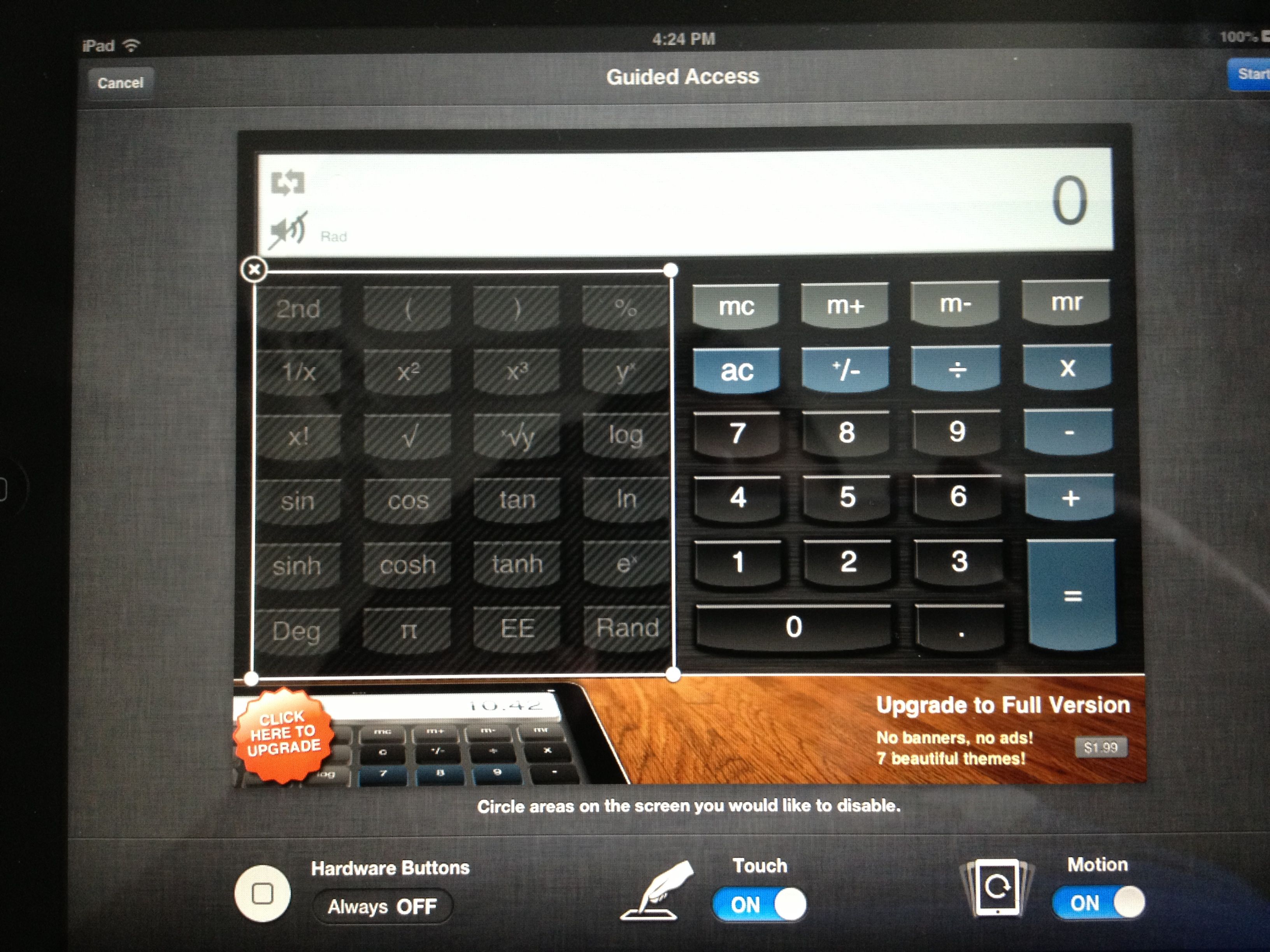 |
| Using a calculator on the iPad, you can disable the extras |
To start using this feature follow these simple instructions:
1) Go to settings
2) General
3) Accessibility
4) Tap the Guided Access, enter a passcode and it is now enabled!
To use Guided Access follow these intructions:
1) Go to the app you want the student to use
2) Triple click home
3) Choose guided access
4) Circle anything on the app you also want to disable
5) Hit start
To exit Guided Access follow these instructions:
1) Triple click home
2) Enter your 4-digit passcode
3) Hit end.
More on Guided Access
Monday, April 8, 2013
The 1 iPad Classroom - Using in a full classroom
I currently teach about 20 - 23 students for each class. Everyday that I teach, I bring my iPad and always find ways to use it in the classroom.
My number 1 is the use of an app called SplashTop Whiteboard. Basically you can sync your iPad to your computer and then annotate on anything that your computer screen can show. This allows for some neat effects such as I can be anywhere in the building and get on my computer; for meetings, if I am making copies and forget to print something off, I can print without going back to my room, I can stand anywhere in my room and continue working on the board, students find it interesting to write on the iPad and have it show up on the board. I find that opportunities to write on the iPad is a strong motivator for students to want to perform objectives in class.
 What about allowing students to use the iPads. Well there are several ways to go about this. Often in a class I will have one student surpass the others. A way to challenge those students more is by giving them my iPad and allowing them to figure things out on their own. As a math teacher, I have my students use the WileD Math app. The really neat part about this app is that it fits perfectly with 8th grade curriculum, as well as most middle school and high school math. As I am working with other students, my excelling student can continue to excel by trial and error with other topics we have not covered yet. I have a very particular student demonstrate high success in geometry, that when she finished her geometry work, she moved onto graphing on the WileD Math app. Although she struggled in the beginning, she has successfully taught herself how to graph using slope-intercept form. As she is an entire chapter ahead of the rest of my class, I view the opportunities I gave her as a perfect example of effective technology use. My students are entering the graphing portion of math now and I have some neat plans to have this student help other students be more successful.
"That is all fine and dandy, but I want to make sure all my students earn opportunities to work on the iPad."...I couldn't agree more!
a) Why not use the iPad as a positive reward system. See a student helping another student, have only a few students staying on task the entire time, give an assignment and only a few turn it in...why not make a little pass that students can use to earn some iPad time after an assignment is completed.
b) Group work can be an effective teaching strategy for projects and other concepts. Why not group the students into small groups and the end requirement is to record a video using the iPad. Give a few days to work on the project then on the last day, provide time slots for students to get the iPad and record their presentation. This way you can preview the videos ahead of time, edit them as needed (or even better teach the students how to), and then play them in class the same or following day.
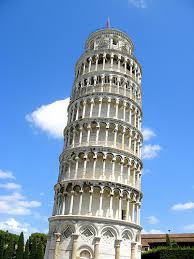 c) Often in class I will reference a famous building and then at the end of the class we have a problem that connects it to the famous building (Such as the leaning tower of Pisa). What could be better than using Google maps to truly show the students the lean on the tower. Perhaps take a measuring devices and do a measuring problem. Pictures of real objects provide great opportunities for proportion problems.
d) Set-up stations around the room and have one of the stations be an exploring activity using the iPads. Give a website that shows a video, use Khan Academy to teach the topic over again, have students use a manipulative website to demonstrate a skill or topic previous or will be covered.
 e) Lastly, ever hear of QR codes? Basically think of them as a better bar-code. Instead of being solely 1-dimensional, QR codes are 2-dimensional which opens the doors to a lot of use. QR codes can be scanned to take you to a website (ever want to use a website for students to use that had over 100 random letters and numbers in it?). QR codes can also be used to send a text message and nearly anything else where a device is connect to the internet. I always have a QR Code Webquest available for students who could use additional motivation to learn. When teaching Pythagorean theorem, I made a QR code that when scanned took you to the video of football players intercepting and tackling each other where at the end the players talked about the math behind intercepting a player and tied it to Pythagorean Theorem. There are a lot of QR Scanner apps out there, the one I primarily use is i-nigma.
Making your own QR code is easy, check out this user friendly site and get QR coding today!
Want to practice your new app, i-nigma? Scan this QR code now!

My number 1 is the use of an app called SplashTop Whiteboard. Basically you can sync your iPad to your computer and then annotate on anything that your computer screen can show. This allows for some neat effects such as I can be anywhere in the building and get on my computer; for meetings, if I am making copies and forget to print something off, I can print without going back to my room, I can stand anywhere in my room and continue working on the board, students find it interesting to write on the iPad and have it show up on the board. I find that opportunities to write on the iPad is a strong motivator for students to want to perform objectives in class.

"That is all fine and dandy, but I want to make sure all my students earn opportunities to work on the iPad."...I couldn't agree more!
To ensure all students have opportunities to use the iPad; here are 5 ideas that you can pick and choose to use when you deem appropriate.
a) Why not use the iPad as a positive reward system. See a student helping another student, have only a few students staying on task the entire time, give an assignment and only a few turn it in...why not make a little pass that students can use to earn some iPad time after an assignment is completed.
b) Group work can be an effective teaching strategy for projects and other concepts. Why not group the students into small groups and the end requirement is to record a video using the iPad. Give a few days to work on the project then on the last day, provide time slots for students to get the iPad and record their presentation. This way you can preview the videos ahead of time, edit them as needed (or even better teach the students how to), and then play them in class the same or following day.
d) Set-up stations around the room and have one of the stations be an exploring activity using the iPads. Give a website that shows a video, use Khan Academy to teach the topic over again, have students use a manipulative website to demonstrate a skill or topic previous or will be covered.
Making your own QR code is easy, check out this user friendly site and get QR coding today!
Want to practice your new app, i-nigma? Scan this QR code now!

Subscribe to:
Posts (Atom)